live view
Live View is Logfire's main view, where you can view traces in real time.
Real-time view (as the name suggests) is useful for observing what's happening in an application in real time, but it can also be used to browse historical data.
Details panel closed
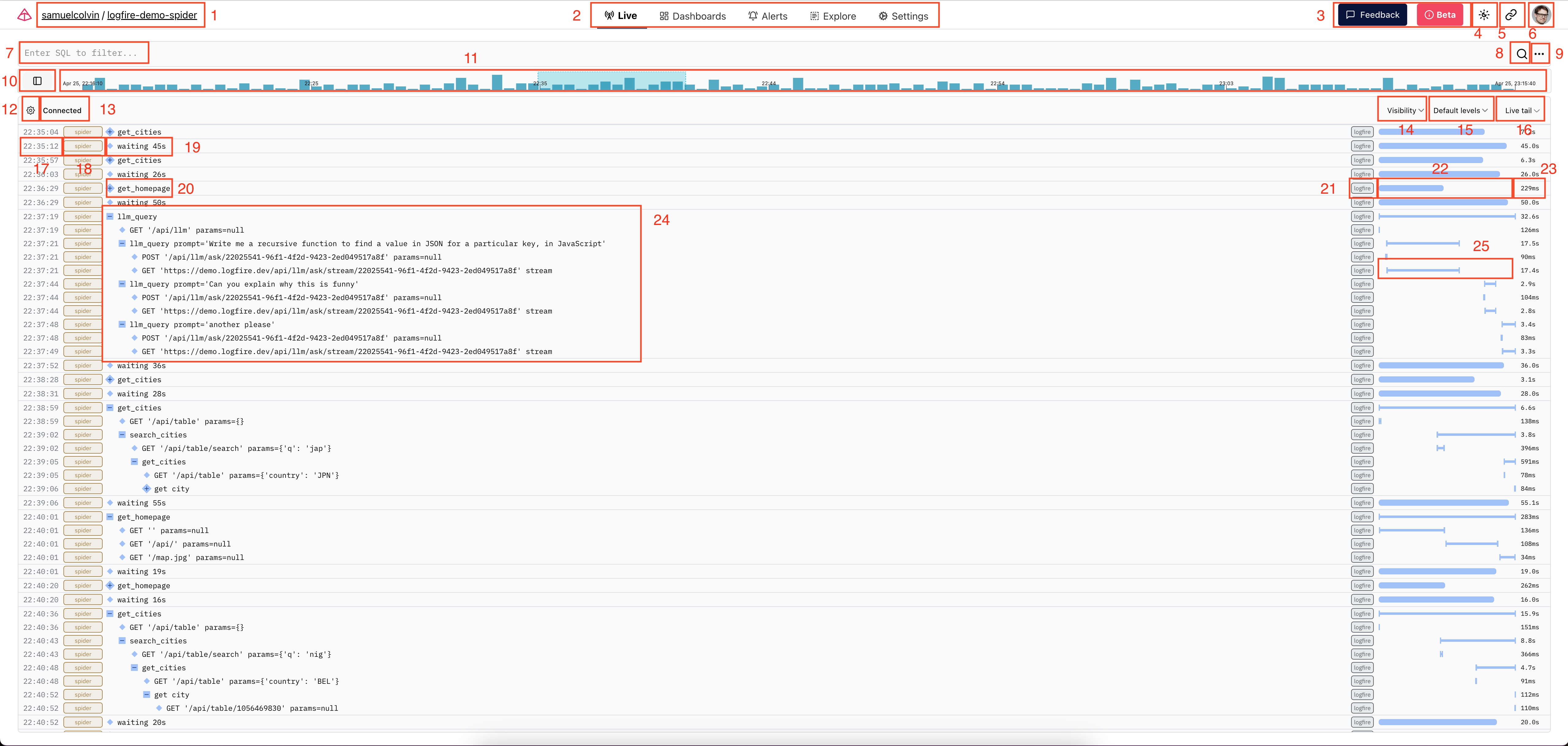
This is what you see when you come to a real-time view of a project that contains some data.
-
organization and project label:In this example, the organization is
samuelcolvinand the project islogfire-demo-spider. You can click on the organization name to go to the organization overview page; the project name is the link to this page. -
Project Page:These are links to various project-specific pages, including "Live,""dash board”、“alarm"," browse "and “ Settings page.
-
Feedback and Beta buttons:Click the Feedback button to provide us with feedback. Beta button contains more information about Logfire beta status.
-
light/dark mode switching:cycles between light, dark and system-because everyone seems to have an opinion on this: smile:
-
Link to current view:Click this button to copy a link to your page containing the same query etc.
-
Organization Selection Panel:Opens a drawer with links to the different organizations you belong to, as well as links to the Terms and Conditions, Support, Documentation and Logout buttons.
-
Query Text Input:Enter a SQL query here to find spans that match the query. The query should use Postgres compatible on the record table
WHEREThe form of the clause (for example, to find warnings, enter级别 >= level_num('error'))。For more details on architecture, see Browse the documentation here。 -
search button:After typing a query, you can click here to run it, or press cmd+enter(ctrl+enter on Windows/Linux).
-
Extra Query Menu:Here you can find quick options for adding filters to various fields of a query. In addition, there is a link to the Natural Language Query Entry option, which uses an LLM to generate queries based on a natural language description of what you are looking for.
-
Toggle timeline position button:Click here to toggle the timeline between vertical and horizontal orientation (see next item for details).
-
Timeline:This shows a histogram of span counts that match queries over time. The highlighted portion in blue corresponds to the time range currently visible in the scrollable trace list below. You can click the point on this row to view logs from that point in time.
-
Tracking Scroll Settings:This menu contains settings related to what appears in Tracking Scroll View.
-
status label:If your query succeeds and you are receiving live data, this should show "Connected." If there are syntax errors in the query or other problems are encountered, you should view details about the problem here.
-
service, scope, and tag visibility filter:Here, you can control whether certain spans are displayed based on their service, scope, or tag.
-
level visibility filter:Here, you can control which log levels are displayed. By default, the debug and trace level spans are hidden in view, but you can change the values here to show them, or you can toggle visibility for spans of other levels.
-
Time window selection:Here you can switch between "live tail"(showing live logs received) and historical time ranges of different sizes. When you select a specific time range, the timeline of item 11 will match that range.
Below item 16, we have the Trace Scroll View, which shows traces matching the current query and visibility filters.
-
Start timestamp label:This timestamp is
start_timestampof span. Hover this location to view its age in human-readable format. -
service tag:This pill contains
service_namefor span. This is the name of the service that generates span. You can hover over it to view version information. -
Message:Here you can see this span
的消息(actually the root span it traces). You can also click here for more details. Note that smaller diamonds indicate that this span has no children -
collapsed trace:span The larger diamond on the left side of the message (with
+) indicates that this span has subspans, which can be expanded to view by clicking on the+diamond. -
range label:This pill contains span
的otel_scope_name. This is the name of the OpenTelemetry range that generated the span. Typically, OpenTelemetry ranges correspond to detections, so this usually lets you know which library's detections produced the span. When using the logfire API to generate the span, this will be logfire, but if the span is generated by another detection, this will be the name of the OpenTelemetry detection package. You can hover over to view version information. -
Trace Duration Row:When the root span of the trace is folded, the line on the right will be thicker and more rounded and start from the far left. In this case, the length of the row represents the logarithmic scale duration of the trace. See item 25 for comparison.
-
trace duration label:shows the duration of the trace.
-
Extended tracking:Here we can see what it would look like if we extended the trace down a few levels. You can click any row in the trace to see more details about the span.
-
Span Duration Line:When the trace unfolds, the shape of the line changes, indicating a transition to a linear scale, where you can see the start and end timestamps of each span throughout the trace.
Details panel opens
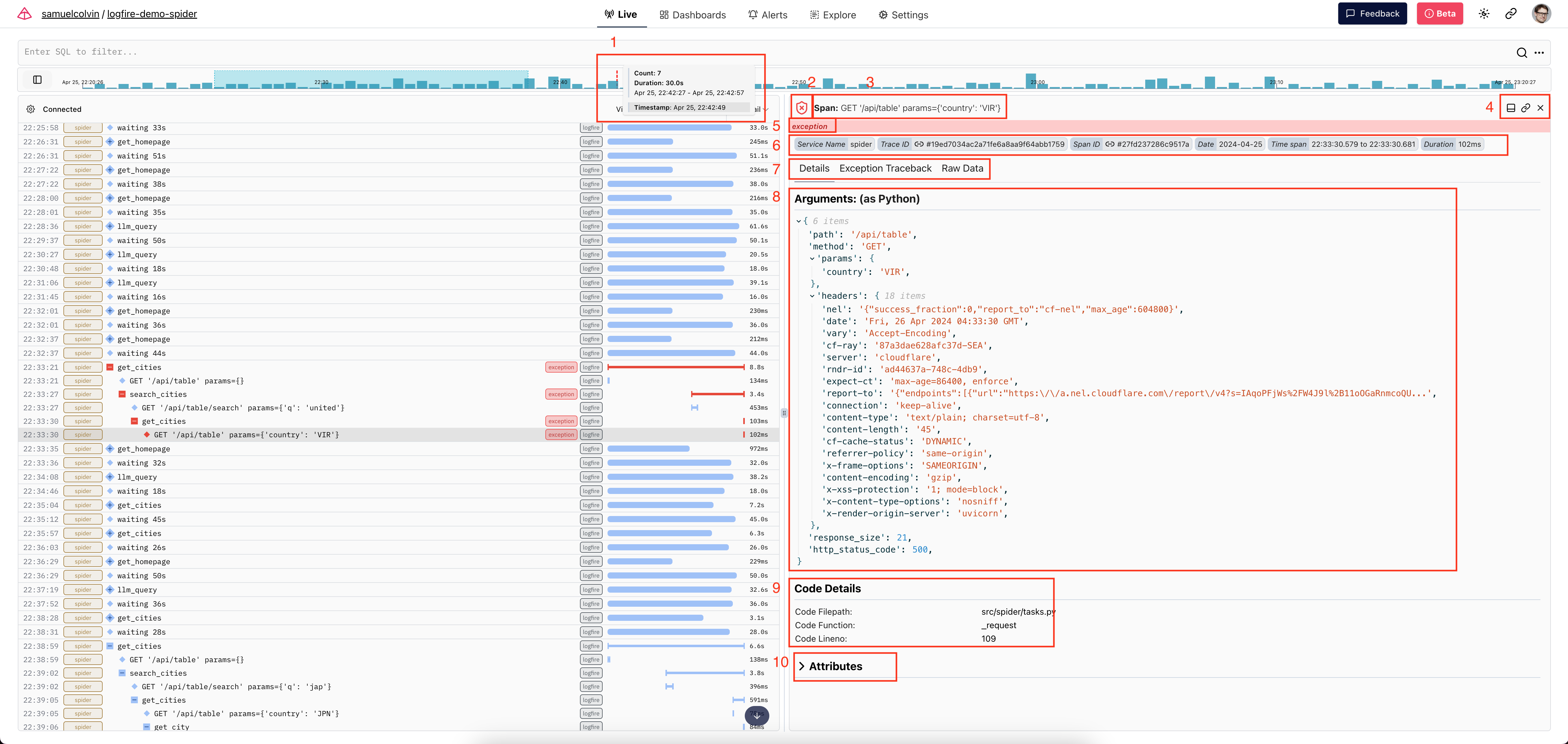
When you click on a span in Traces Scroll, it opens the Details panel, which you can see here.
-
Timeline Tooltip:Here you can see the tooltip displayed when hovering over the timeline. It shows the record count in the hovering histogram bar, the duration of the bar, the time range represented by the bar, and the exact timestamp you hovered over (and the timestamp of the record that will be retrieved when you click the timeline)
-
level icon:This icon represents the highest level of this span and any descendants thereof.
-
span messages:Here you can see if the project is Span or Log, and its messages.
-
details panel direction toggle and other buttons:second button Copy a link to view this specific range. X will close the details panel for this range.
-
Exception warning:This exception indicator exists because an exception occurred in this span. You can see more details in the Exception Backtracking Details tab.
-
Fixed Span Properties:This section contains some details about spans. You can click the link icons on the Trace ID and Span ID pills to take you to the view of Trace or Span, respectively.
-
Details tabs:These tabs contain more details about spans. Some tabs, such as the Exception Details tab, are displayed only for spans that contain data related to that tab.
-
Parameters panel:If span is created using one of the logfire span/logging APIs and there are parameters, those parameters appear here and as Python dictionaries.
-
Code Details panel:This panel appears when there are attributes about the source line on the span and displays that information here.
-
Full Span Properties Panel:This panel displays a complete list of OpenTelemetry properties on a span when any properties are present. By default, this panel is collapsed, but you can click its name to display it.
Live View variant
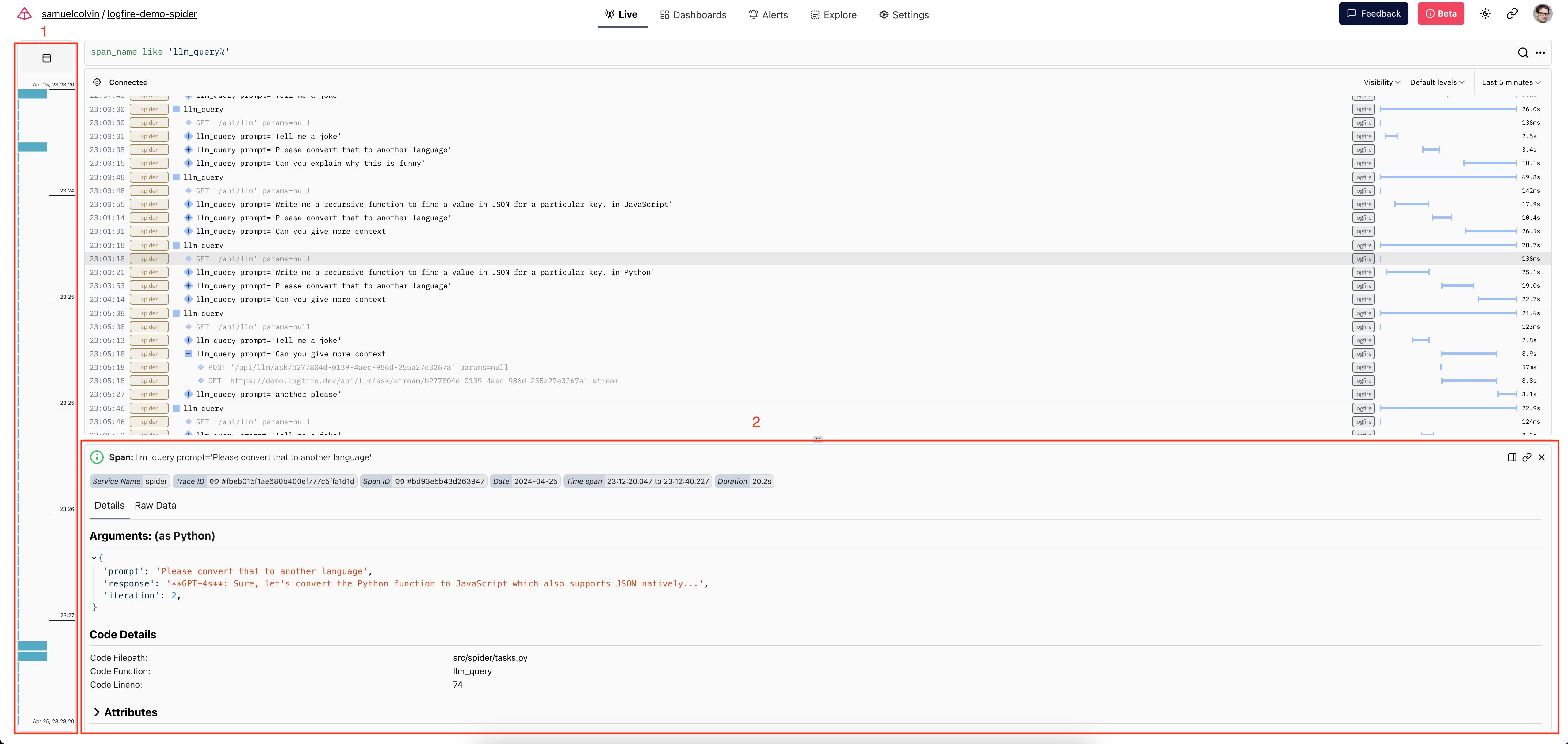
- This is what the timeline looks like vertically. You can switch this orientation at any time.
- This is how the details panel looks in the horizontal orientation. You can switch this orientation as long as the details panel is open.
本文总阅读量次