Alerts
WithLogfire, you can set up alerts to notify you when certain conditions are met.
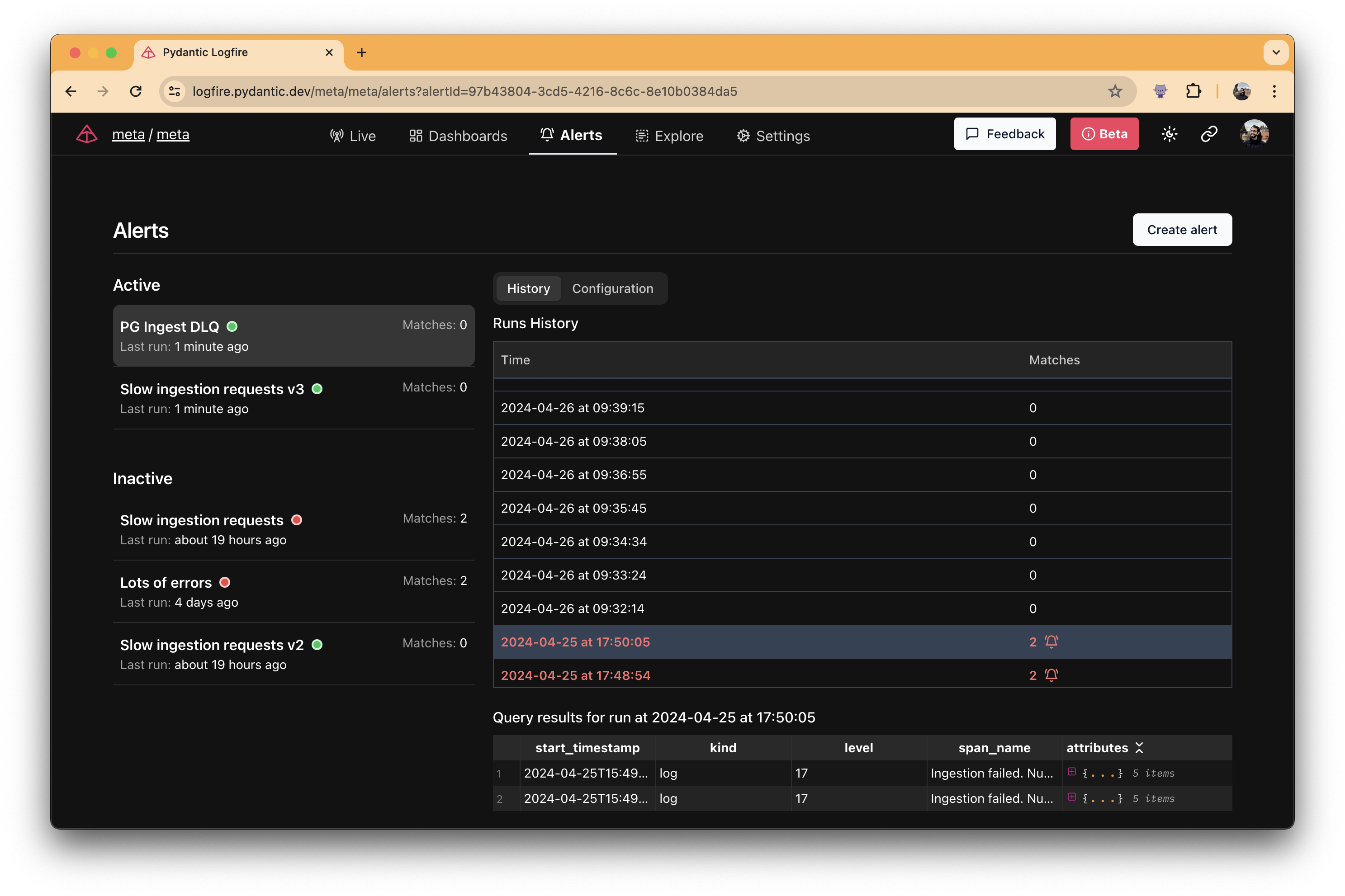
create an alert
Let's see how to create alerts in practice.
-
Go to the"Alerts" tab in the sidebar on the left.
-
Click theCreate Alertbutton.
You will then see the following form:
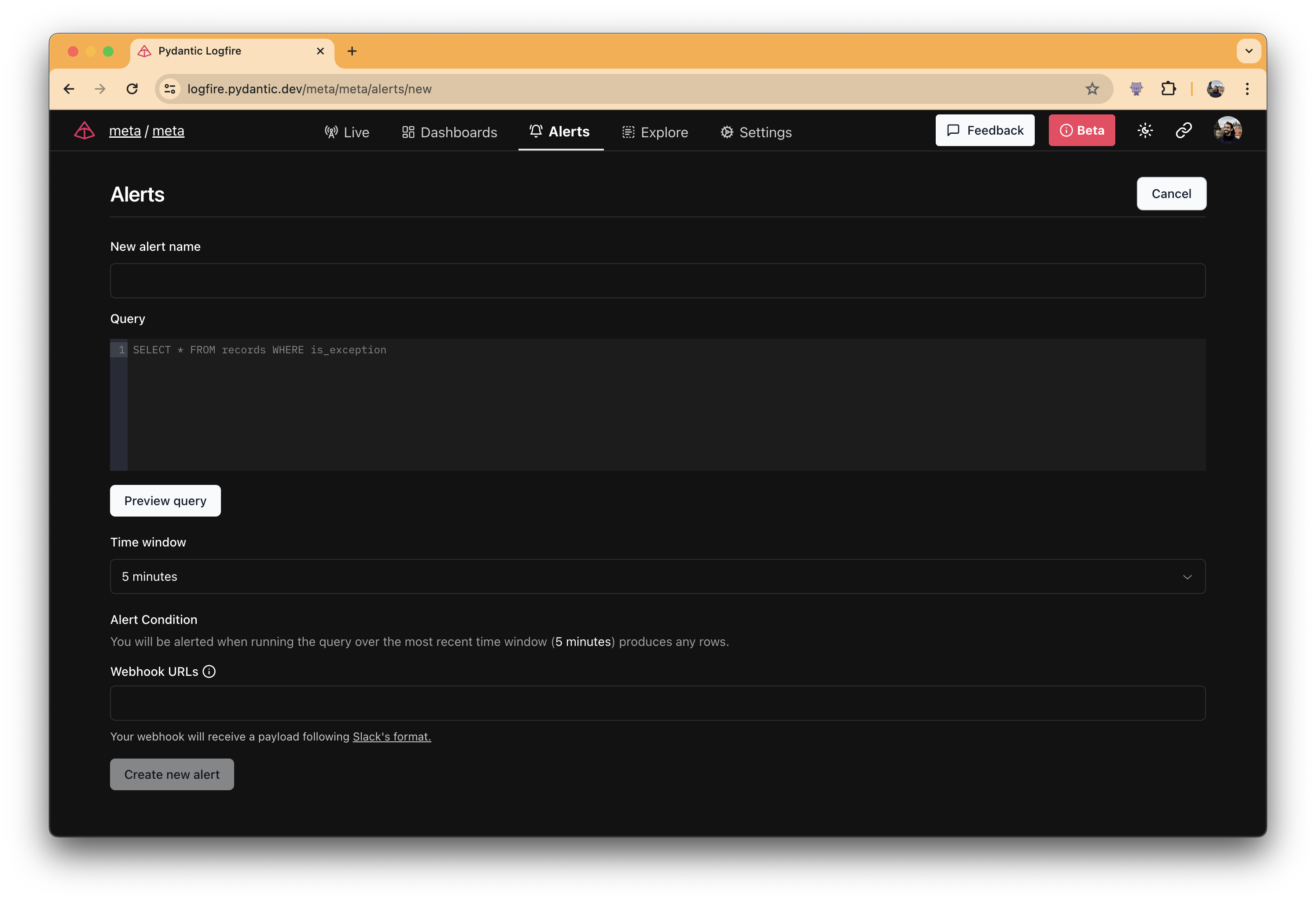
In the Queryfield, you can define conditions that will trigger an alert. For example, you can set an alert to notify you when the number of errors in the log exceeds a certain threshold.
In our example, we will set up an alert that will be triggered when an exception occurs in the api service and the route is /members/{user_id}.
SELECT * FROM records  -- (1)!
WHERE
    is_exception and  -- (2)!
    service_name = 'api' and  -- (3)!
    attributes->>'http.route' = '/members/{user_id}'  -- (4)!
-
SELECT * FROM recordsStatement is the basic query to be executed.recordTables contain span and log data.You can use this table to filter the data you want to analyze.
-
`is_exception` Field is a Boolean field indicating whether the record is an exception. -
`service_name` Field contains the name of the service that generated the record. -
The `attributes` field is an [JSONB](https://www.postgresql.org/docs/current/datatype-json.html) field that contains additional information about the record. -
In this example, we use the `http.route` attribute to filter records by route.
TheTime Windowfield allows you to specify a time range over which to execute the query.
In theWebhook URLfield, you can specify the URL to which the alert will send POST requests when triggered. Currently,Logfirealerts only send requests in the Slack format.
???prompt "Get Slack Webhook URL" To get Slack Webhook URL, follow the instructions in Slack documentation.
After filling out the form, click on the "Create Alert" button. and... Alert Created!: Tada:
alert history
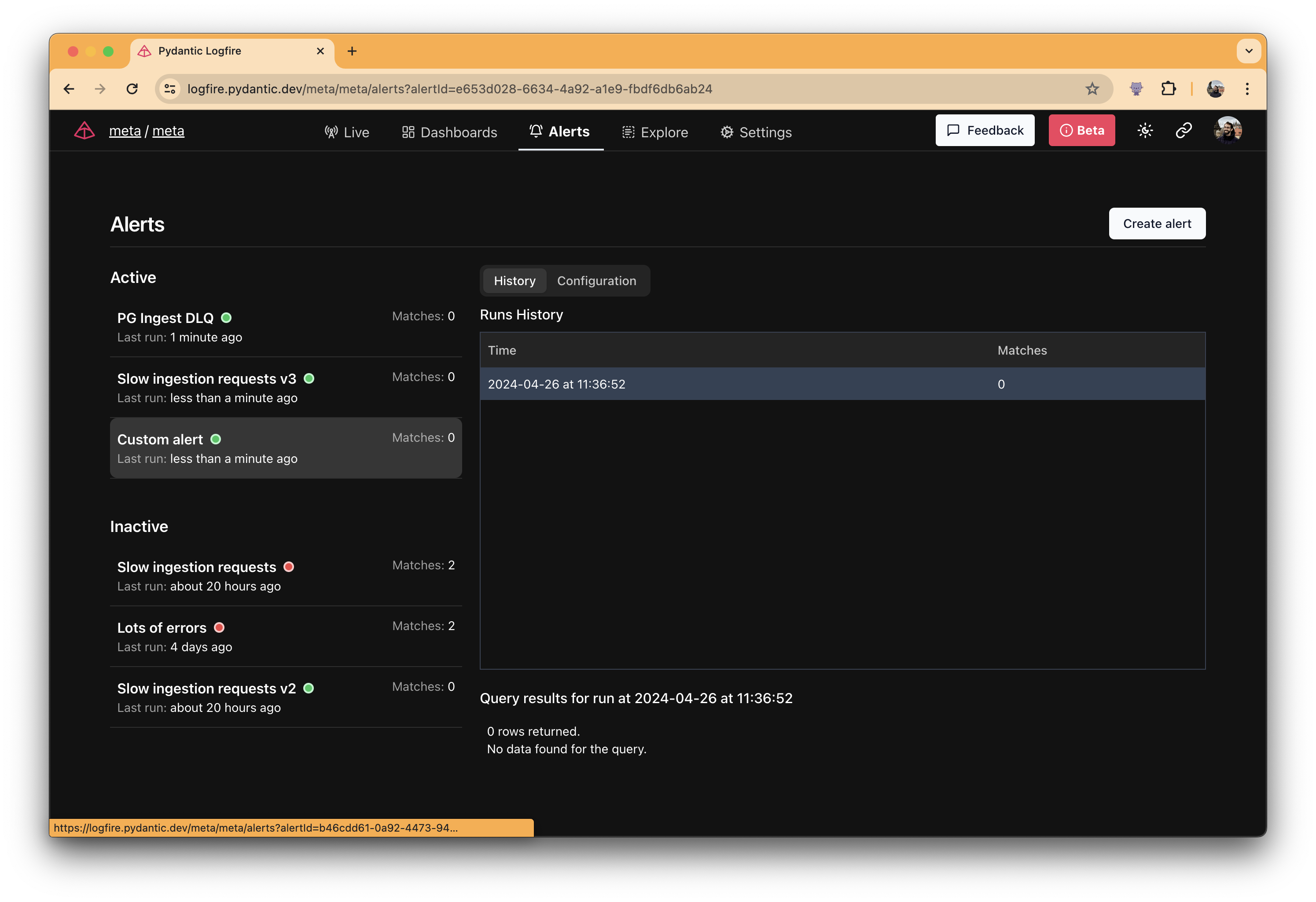
After you create an alert, you are redirected to the alert list. There, you can see the created alerts and their status.
If the query did not match within the last time window, you will see a 0 in thematchescolumn and a green circle next to the alert name.
Otherwise, you will see the number of matches and a red circle.
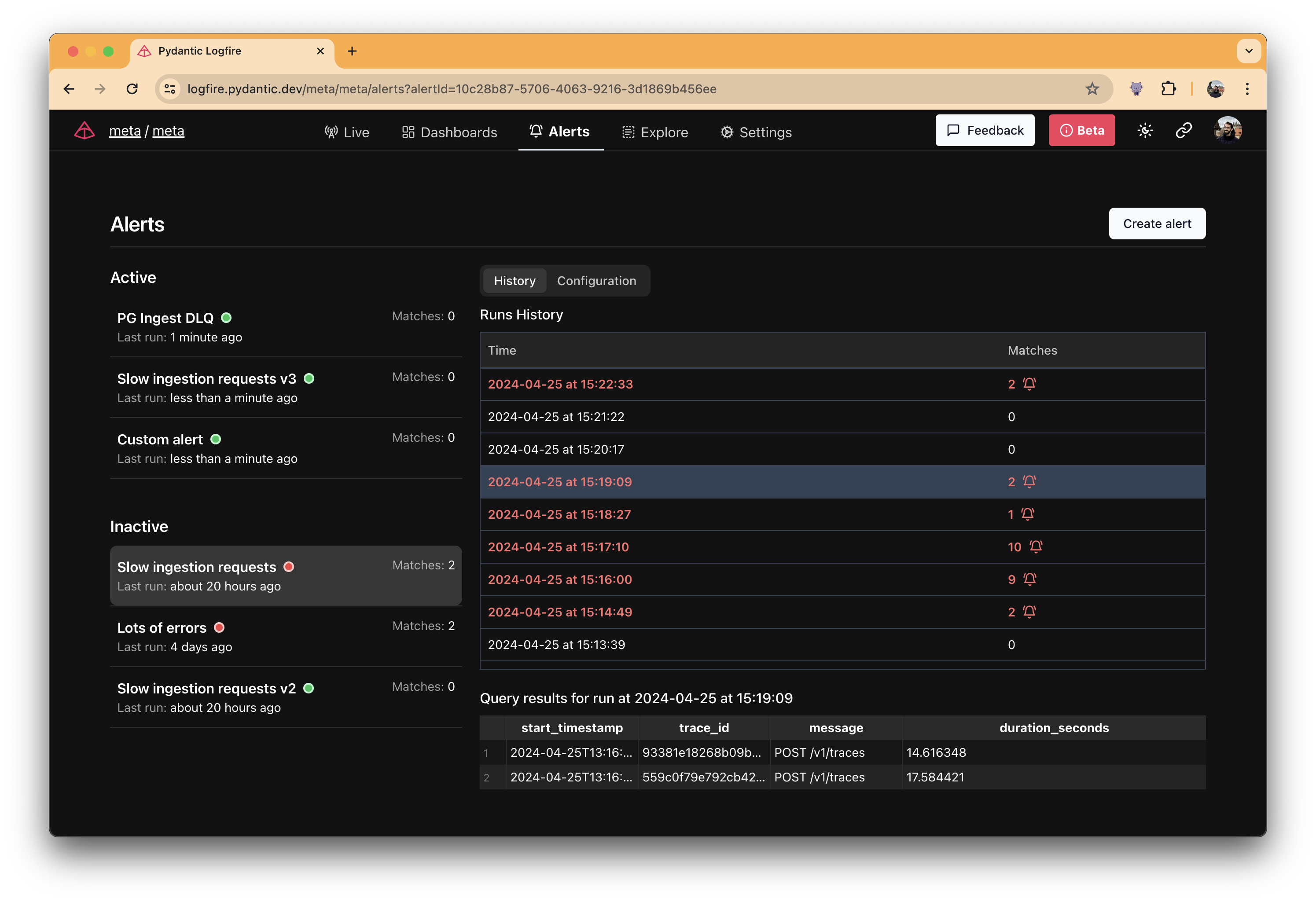
In this case, you will also receive notifications in the Webhook URL that has been set.
edit an alert
You can configure alerts by clicking theConfigurebutton on the right side of the alert.
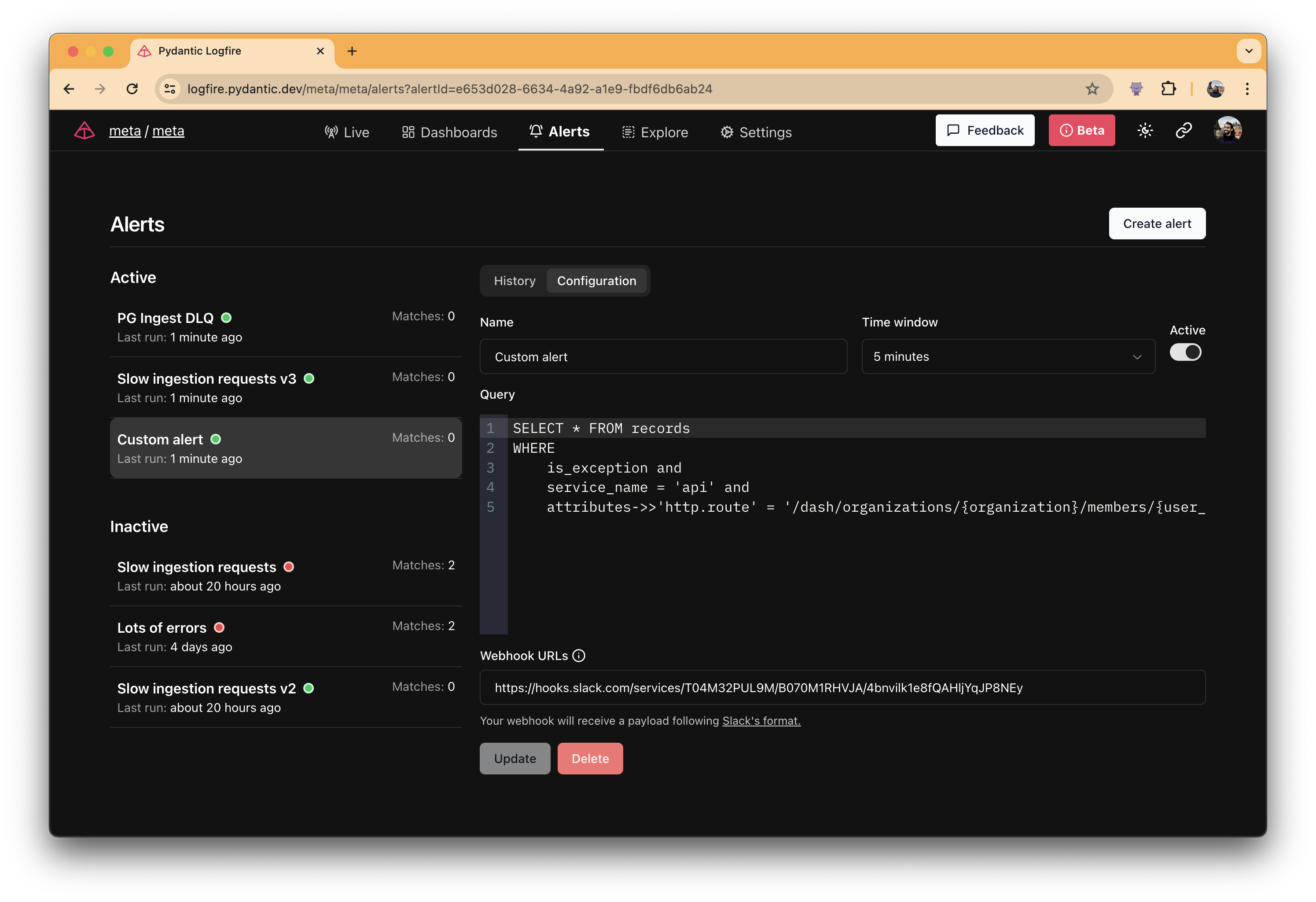
You can update an alert or delete it by clicking theDeletebutton. If you do not want to delete an alert but want to disable it, click theActiveswitch.
本文总阅读量次