dash board
This guide describes how to create and customize dashboards inLogfire UIfor effective monitoring of services and system metrics.
bring into use
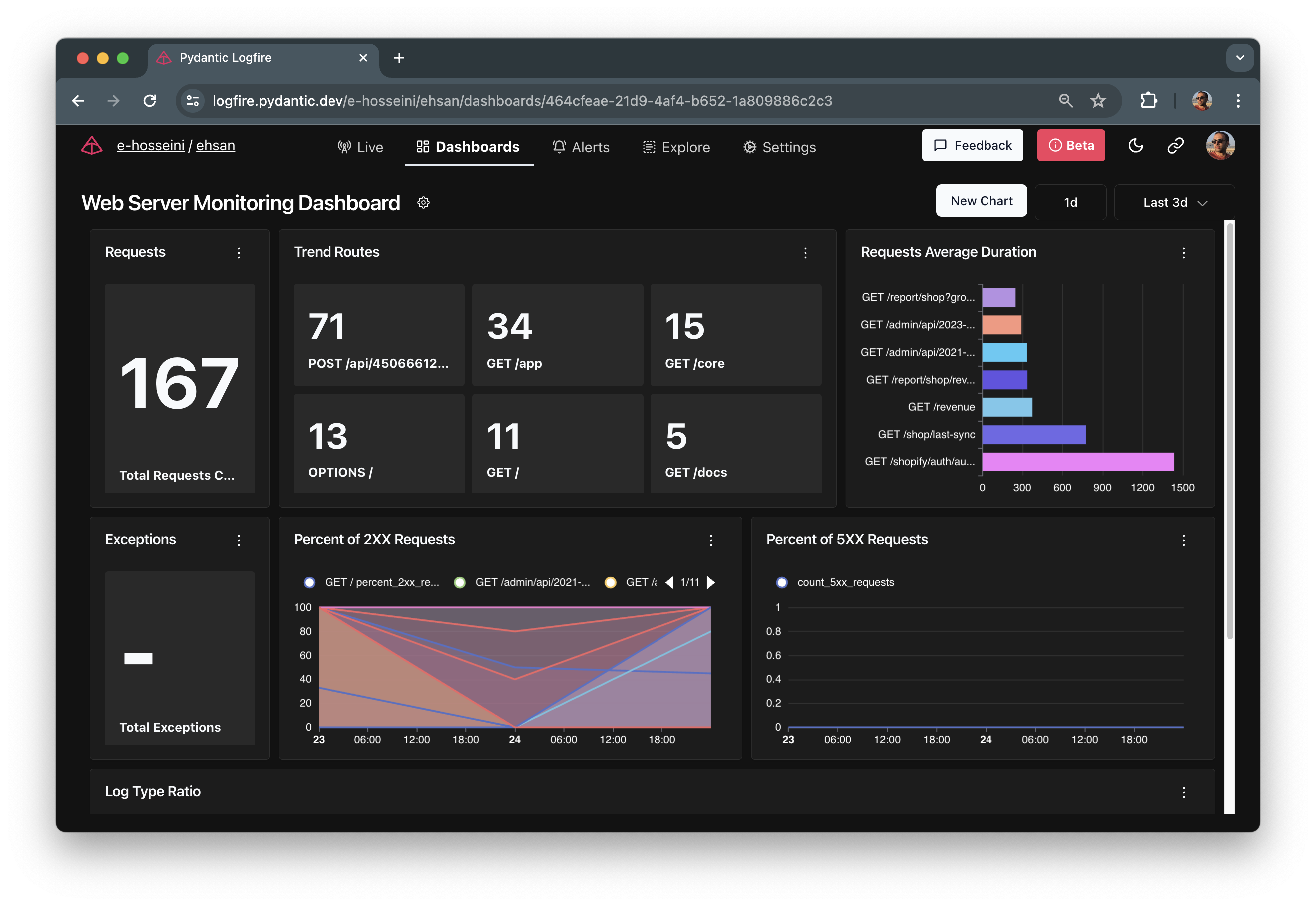
Logfireprovides several pre-built dashboards as a convenient starting point.
Web Services Dashboard
This dashboard provides a high-level view of Web service health. It may display key metrics such as:
-
Requests:The total number of requests received by your Web service.
-
exceptions: Number of exceptions encountered duringrequest processing.
-
trending routes:visualizes the most frequently visited routes or APIs over time.
-
2XX Percentage of requests:Percentage of requests that resulted in successful responses (status codes in the range of 200).
-
Percentage of5XX requests: The percentage of requests thatcauses server errors (status codes in the 500 range).
-
log type ratio: A breakdown of the different log types (e.g., info, warning, error) generated by your Web service.
System measurement indicators
This dashboard focuses on system resource utilization and may include:
-
CPU Usage: The percentage of processing power used by thesystem.
-
memory usage: the amount of memory currently being used by thesystem.
-
Number ofprocesses: The total number of processes running on thesystem.
-
Swap usage:The amount of swap space the system is currently using.
custom dashboards
To create a custom dashboard, follow these steps:
-
On the dashboard page, click the Start From scratch button.
-
After creating the dashboard, you can start renaming it and adding charts and blocks to it.
-
To add a chart, click the Add Chart button.
-
Select the type of block you want to add.
-
Configure blocks by providing the necessary data and settings (see next section).
-
Repeat steps 4-6 to add more blocks to the dashboard.
-
To rearrange blocks, turn on Edit Mode in Dashboard Settings and simply drag and drop them to the desired location.
Feel free to experiment with different block types and configurations to create a dashboard that suits your monitoring needs.
Select and configure charts for Dashboard
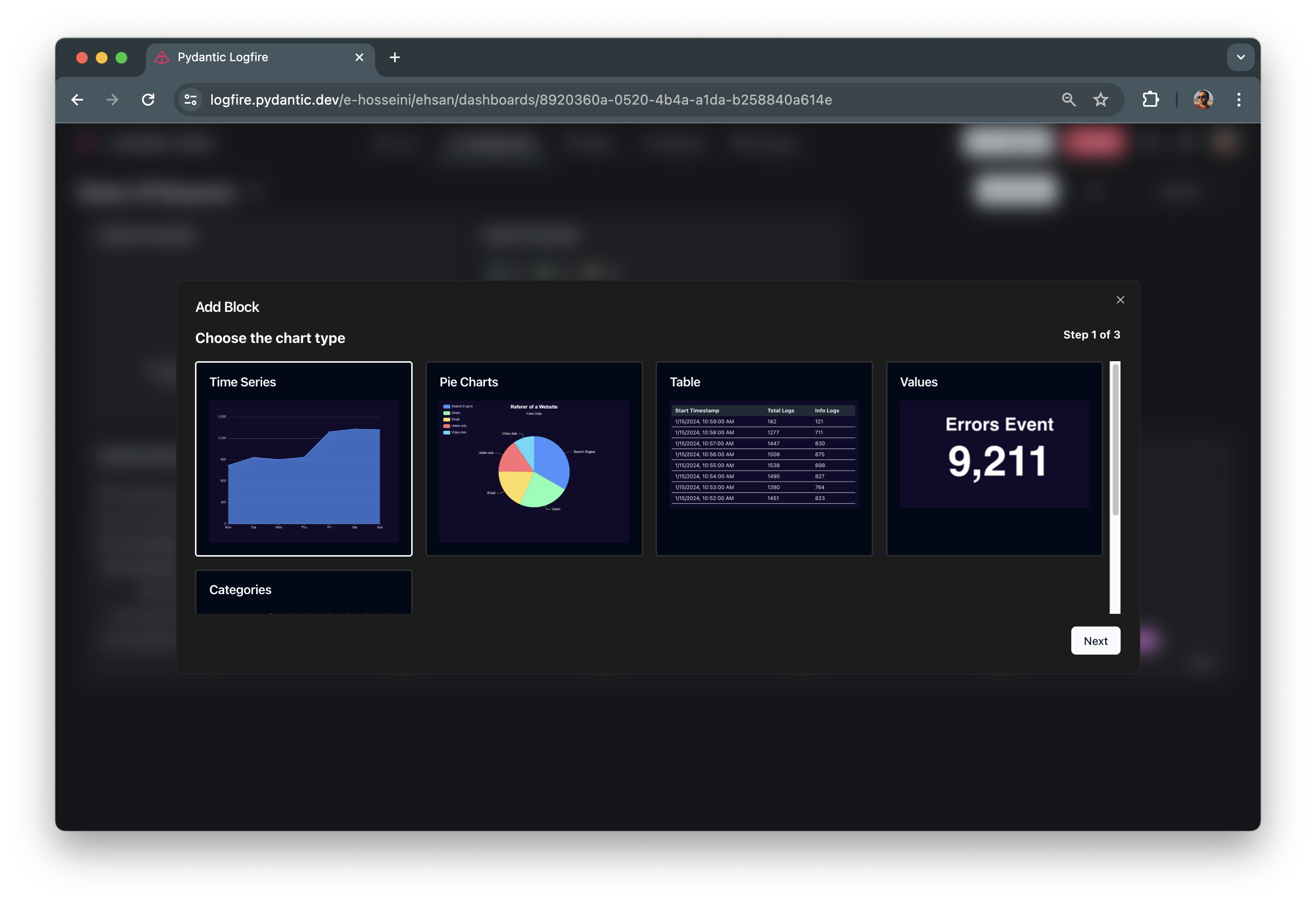
When creating or modifying custom dashboards in Logfire, you can select different chart types to visualize your data.
definition query
In the second step of creating a graph, you need to enter a SQL query. The graph of Logfire Dashboard gets data based on this query. You can view the real-time results of the query on the table behind the query input. You can retrieve your records using the full functionality of PostgreSQL.
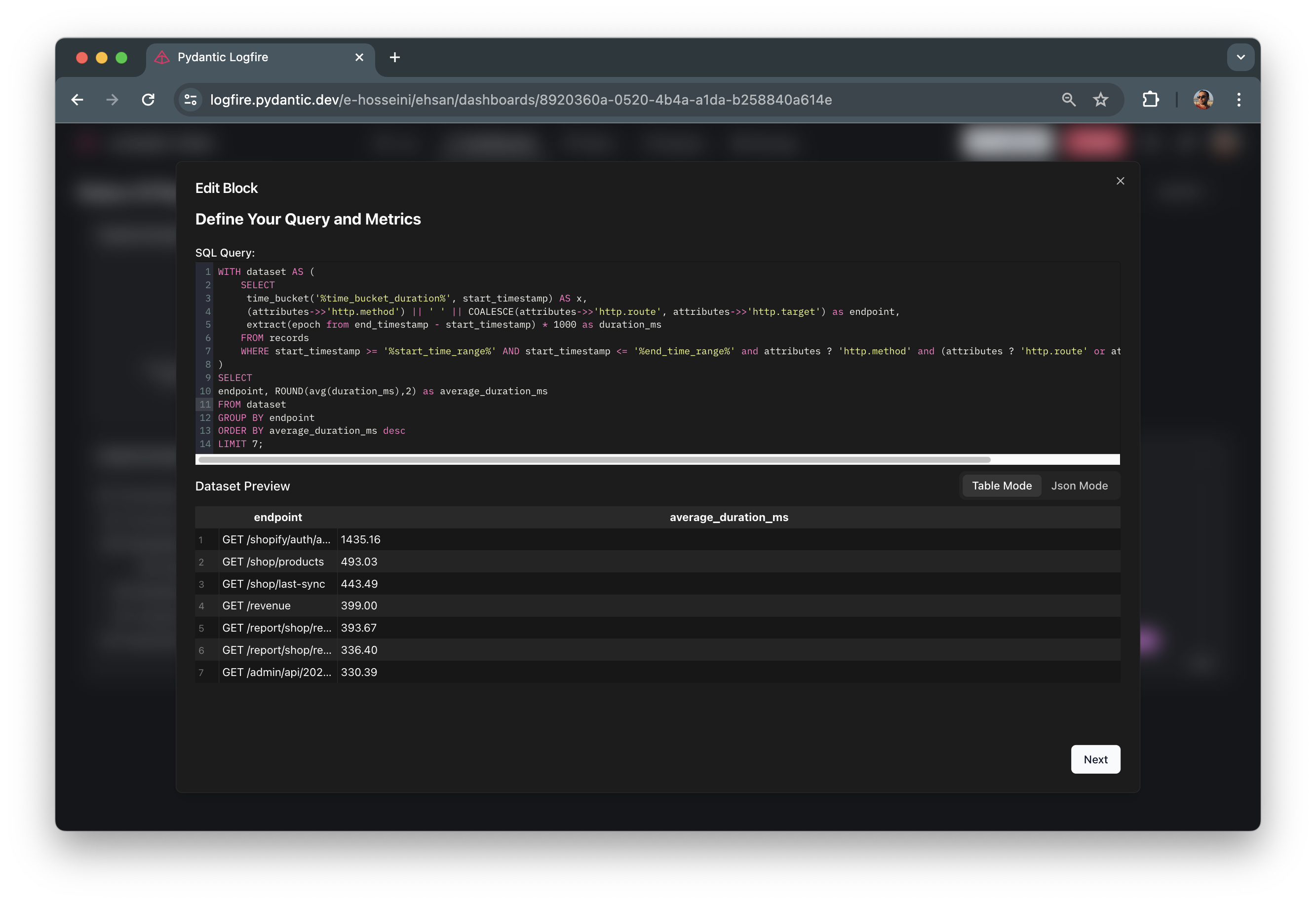

Chart preview and configuration
Depending on your needs and queries, you need to configure charts to visualize and display your data:
time series plot
A time series chart displays data points over a specific time period.
pie
A pie chart represents data as circular slices, where each slice represents a category or value.
desk
Tables display data in rows and columns, allowing you to present data in tabular form.
price
Value charts display single values or multiple values as cards or panels.
category
Category charts represent data as categories or groups, allowing you to compare different groups.
tips and tricks

Enhanced viewing with sync tooltips and zoom
For dashboards containing multiple time series charts, consider enabling Sync Tooltips and Zoom. This powerful feature provides a more cohesive viewing experience:
synchronization hover:When you hover over a data point on any time series chart, the corresponding data point on all synchronized charts will be highlighted simultaneously. This makes it easy to compare the values of different metrics at the same point in time.Zoom Together:Zooming in or out of a single chart automatically applies the same zoom level to all synchronized charts. This helps you maintain focus on a specific time range across all metrics, ensuring consistency in your analysis. Activate synchronization
To enable synchronization tooltips and scaling for dashboards:
-
Open your dashboard in Logfire.
-
Click Dashboard Settings
-
Activate the Sync Tooltips and Zoom option.
custom chart
Logfireenables you to personalize the look and behavior of your charts to better suit your needs. Here is an overview of the options available:
-
renaming chart:assigns a clear and descriptive title to the chart to improve readability.
-
Edit Charts: Change chart queries to better represent your data.
-
Copy Charts:saves you time and effort by quickly creating copies of existing charts for further modification.
-
Delete chart:If the chart is no longer relevant, delete the chart from the dashboard.
本文总阅读量次