contribute; contribute
Thank you for your interest in contributing to Starlette. You can contribute to the project in a number of ways:
- Try Starlette and report errors/problems you find
- implement new functionality
- Review pull requests from others
- writing documentation
- take part in a discussion
Report errors or other problems
Found something Starlette was supposed to support? Accidentally encountered some unexpected behavior?
Contributions should usually start with a discussion. Possible errors can be raised as a "potential problem" discussion, and feature requests can be raised as an "idea" discussion. We can then determine whether the discussion needs to escalate to a "problem" or whether we will consider pull requests.
Be as detailed as possible and, in the case of error reports, provide as much information as possible, such as:
- operating system platform
- Python version
Installed dependencies and versions of* (
python -m pip freeze) - code snippet
- Error tracing backtracking
You should always try to reduce any example to the simplest possible scenario that illustrates the problem.
develop; develop
To start developing Starlette, create a branch for the Starlette repository on GitHub.
Then clone your branch and replace YOUR-USERNAME with your GitHub username using the following command:
$ git clone https://github.com/YOUR-USERNAME/starlette
You can now install the project and its dependencies using the following command:
$ cd starlette
$ scripts/install
Testing and code checking
We use custom shell scripts to automate the testing, code review, and documentation build workflows.
To run these tests, use:
$ scripts/test
Any additional parameters are passed to pytest. For more information, see the pytest documentation.
For example, run a single test script:
$ scripts/test tests/test_application.py
To run code autoformatting:
$ scripts/lint
Finally, to run code reviews separately (they are also run as part of scripts/test), run:
$ scripts/check
record; document
The documentation page is located under the docs/ folder.
To run the document site locally (useful for previewing changes), use:
$ scripts/docs
Resolve build/continuous integration failures
Once you submit the pull request, the test suite will run automatically and the results will be displayed on GitHub. If the test suite fails, you need to click on the "Details" link and try to figure out why the test suite failed.
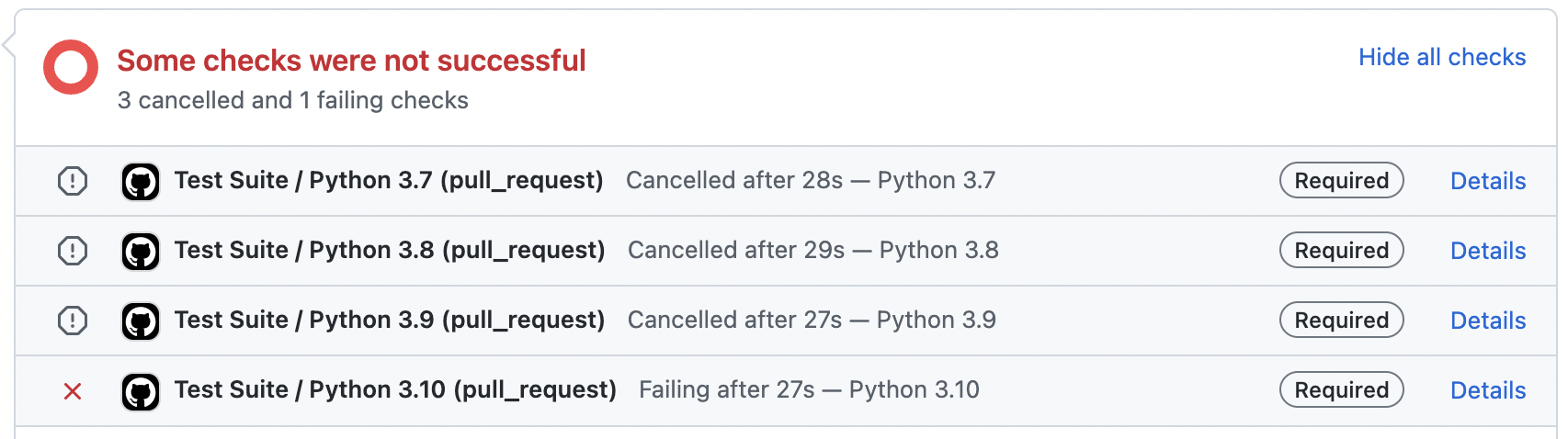
Here are some common ways test suites can fail:
Check job failed
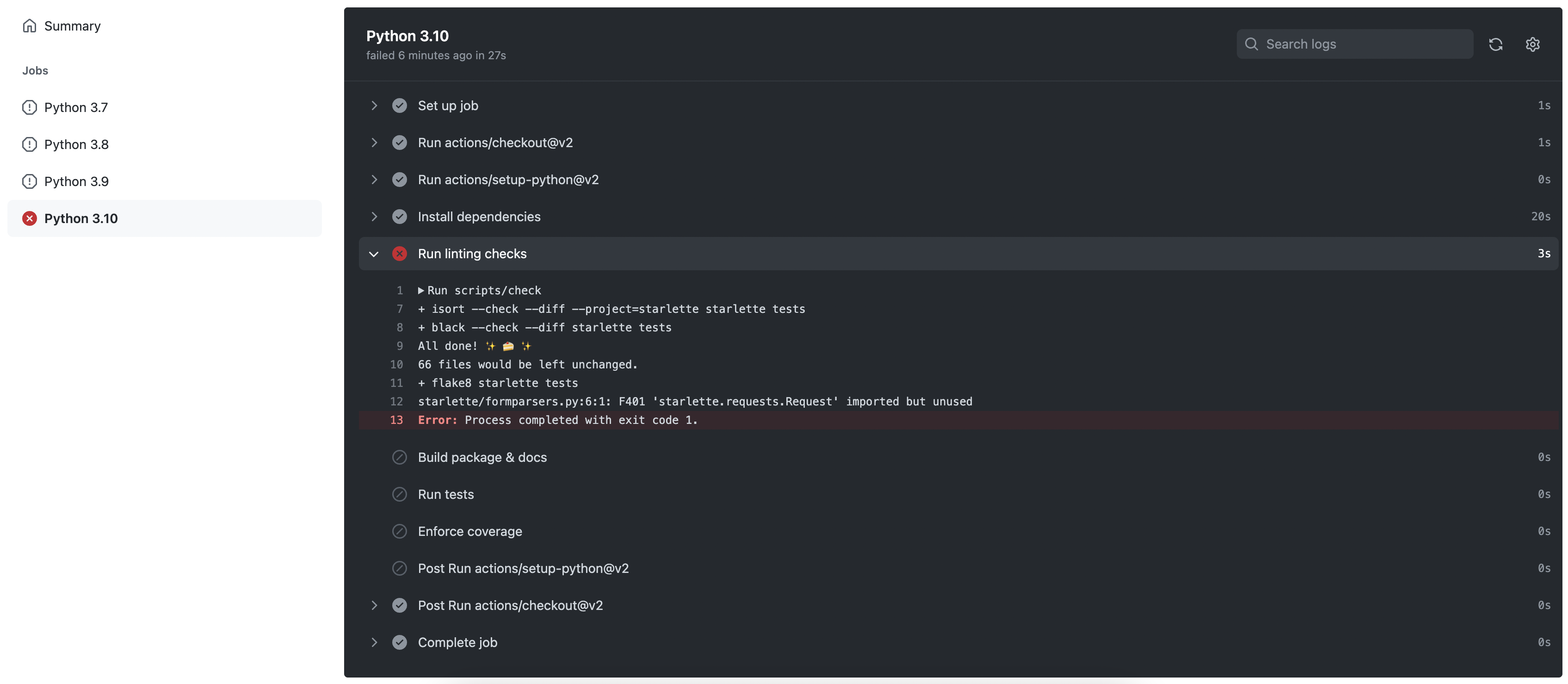
Failure of this job means either there is a code formatting problem or there is a type comment problem. You can view the job output to figure out why it failed, or run it in shell:
$ scripts/check
It may be worthwhile to run $ scripts/lint to try to autoformat the code and commit the changes if the operation succeeds.
Document job failed
Failure of this job means document build failed. This can happen for a variety of reasons, such as invalid Markdown or missing configuration within mkdocs.yml.
Python 3.X job failure
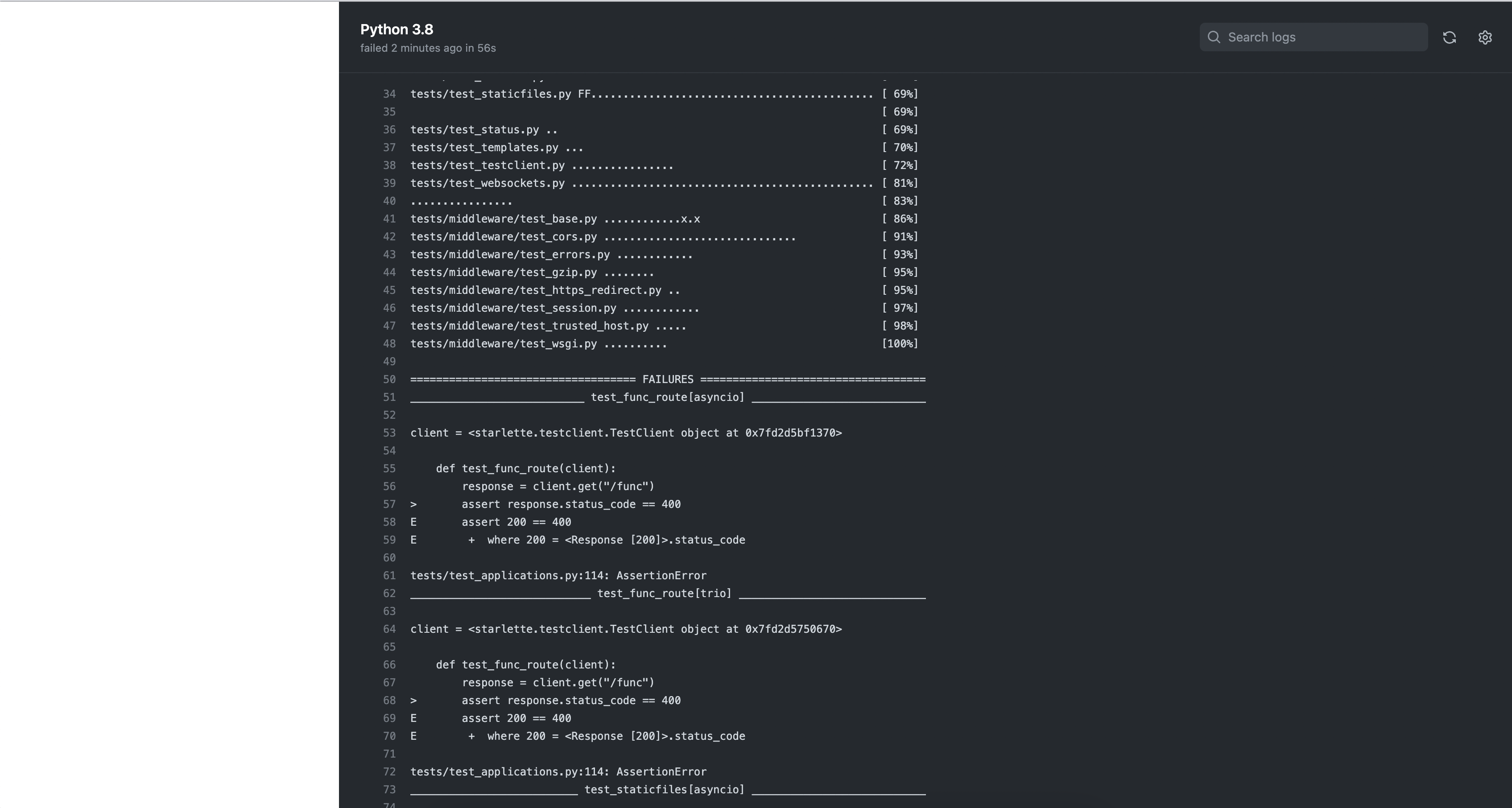
A failure of this job means that the unit test failed or not all code paths were covered by the unit test.
If the test fails, you will see this message under Coverage Report:
=== 1 failed, 435 passed, 1 skipped, 1 xfailed in 11.09s ===
If the test is successful, but the coverage does not meet our current threshold, you will see this message under the coverage report:
FAIL Required test coverage of 100% not reached. Total coverage: 99.00%
issue; release; issue
This section is for Starlette maintainers.
Before releasing a new version, create a pull request that contains the following:
- An update to the change log:
- We follow the format of keepachangelog.
- compares
masterwith the latest version of the tag and lists all the items of interest to our users:- What must be recorded in the change log: added, changed, deprecated, or deleted features and bug fixes.
- What should not be recorded in the change log: changes in documentation, tests, or tools.
- Try sorting items in descending order of impact/importance.
- Keep it simple and to the point.🎯
A version upgrade of* : see
__version__.py.
For example, see #1600.
Once the PR is merged, create a new publication that includes:
- label versions such as
0.13.3. - launch title
Version 0.13.3 - Description copied from change log.
Once created, this version will be automatically uploaded to PyPI.
If PyPI tasks run into problems, you can use the scripts/publish script to release the version.